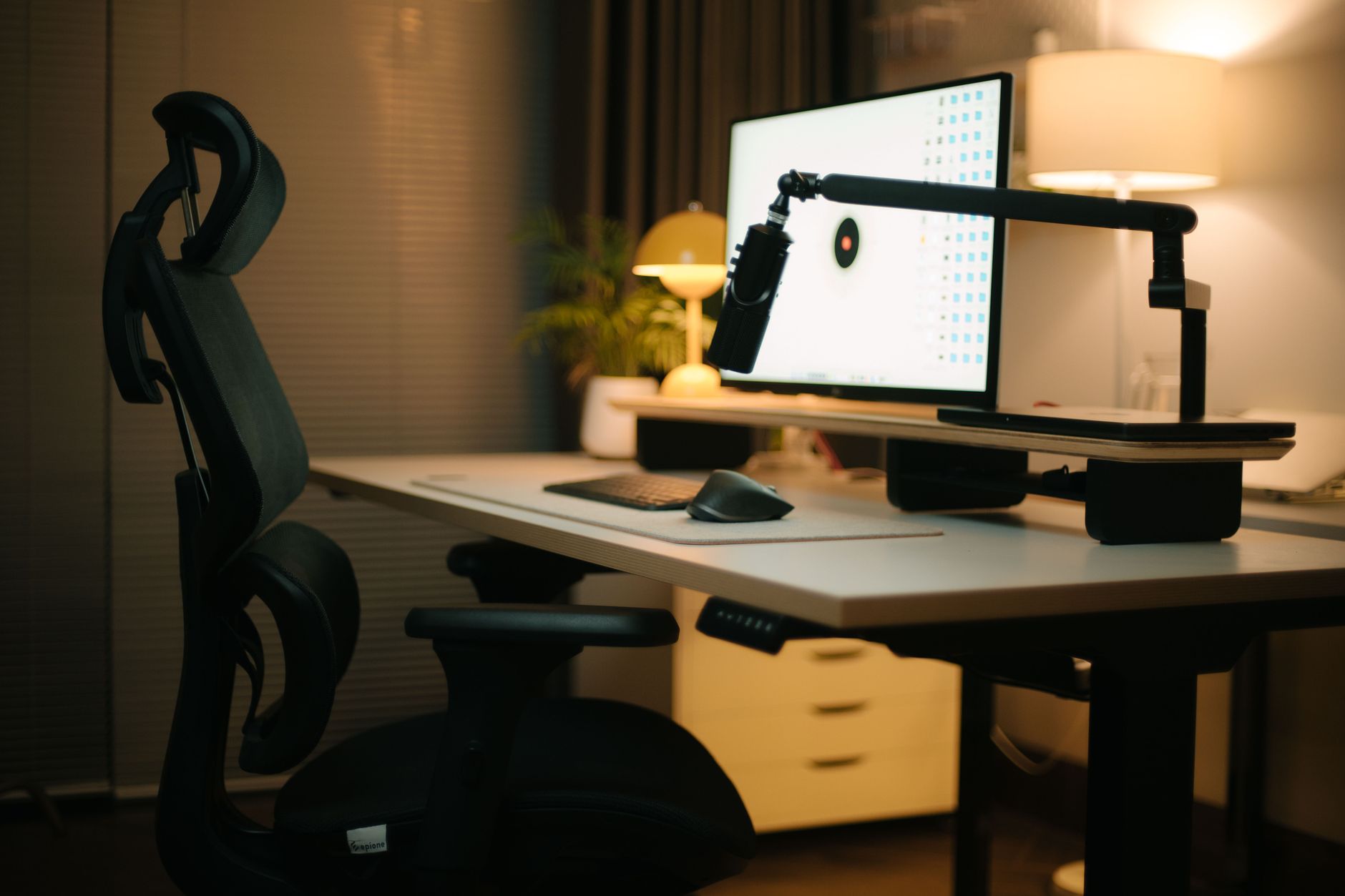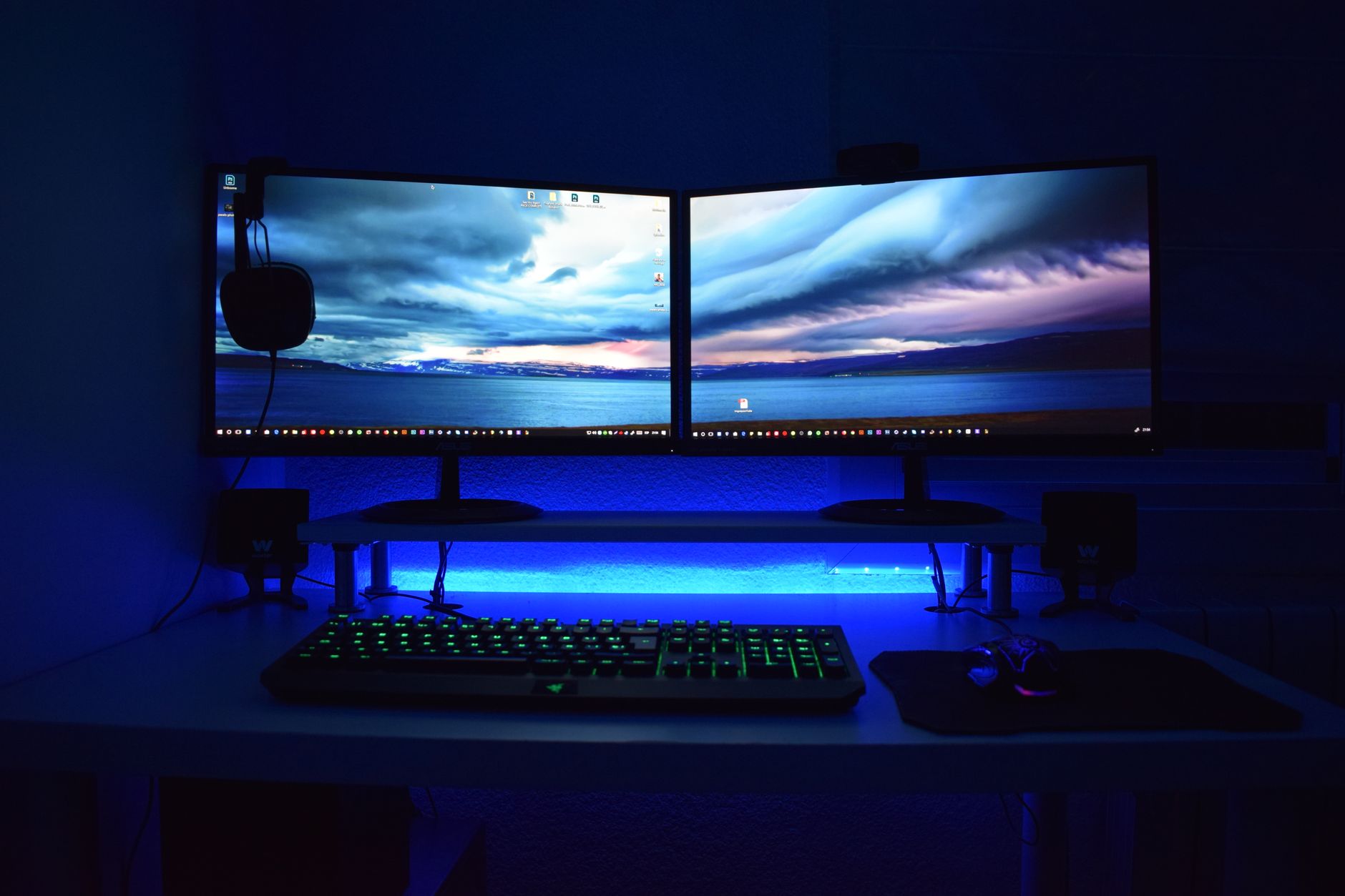
Dual monitors can double your screen space, but they can also double your neck problems if they are arranged like a wall of glowing panels. Most desk workers place two monitors side by side and then spend the day rotating or tilting the head to see the screen edges. This creates uneven loading on cervical muscles and can trigger tension, headaches, and chronic neck strain. A proper dual monitor setup makes the screens work around your neutral posture, not the other way around. Before you buy or mount anything, review the full ergonomic workstation guide to understand how your chair, desk, keyboard, and monitors interact.
The goal is simple. Your primary screen should sit directly in front of your eyes at a comfortable distance. Your secondary screen should fall just inside your easy eye movement range. You should never have to twist your neck, lean forward, or tilt your chin up to read text. The best monitor arms make these adjustments possible because they free the screens from fixed stands and allow independent height, depth, tilt, and rotation changes. The right arm can hold a 4 to 9 kilogram monitor safely and still move with a fingertip.
Occupational health guidance from OSHA and research from the Cornell University Ergonomics Web stress neutral posture and frequent small position changes. The numbers matter. For most adults, monitor distance should stay between 20 and 30 inches. The top of the screen should be at or just below eye level. The total side to side viewing angle should not force you to rotate beyond roughly 35 degrees from center. This guide turns those numbers into an exact dual monitor setup.
We will walk through monitor arm selection, chair and desk height, screen placement, distance, angle, tilt, and cable management. You will also learn the red flags that make a dual monitor station painful and the practical adjustments that prevent neck strain. Whether you use a dedicated desk or a sit stand converter, the same rules apply. Let’s set up your monitors so they support your posture instead of sabotaging it.
What You’ll Need
- Measuring tape
- Dual monitor arm with VESA compatibility
- Screwdriver
- Cable ties or cable sleeve
- Torpedo level or level app
How Do You Create the Best Ergonomic Dual Monitor Setup?
- Choose monitor arms that fit your screens and desk
Start by checking the VESA mount pattern on each monitor. Look for 75 x 75 mm or 100 x 100 mm. Most 24 to 34 inch screens use 100 x 100. If there are no VESA holes, you need an adapter. Check the monitor weight without its stand. A gas spring arm rated for 2 to 9 kg handles most 24 to 27 inch displays. Heavy 32 inch or curved panels might need 8 to 15 kg of capacity. If you overload the arm, it will sag. The best monitor arm guide breaks down capacities and desk mount styles.
Choose between a dual arm and two single arms. Two single arms give more independent movement and are easier if your desk has a clamp. A dual arm saves space but often works best when both monitors have similar size and weight. If one monitor is primary and the other is portrait or smaller, two singles are better. Consider a gas or spring arm with tension adjustment. It moves smoothly and stays put when you make micro adjustments. A common reference point is the Ergotron LX Dual Monitor Arm. Check the Ergotron LX Dual Monitor Arm on Amazon. It is not the cheapest, but it is a proven piece of equipment.
Measure your desk thickness before buying. Most clamps handle up to 2.4 inches. A grommet mount works if you have a cable hole. Avoid arms with a wide base that force monitors too far forward on a shallow desk. For a desk less than 24 inches deep, an arm with a low profile or wall mount may be better. If you use a standing desk, check maximum desk thickness and frame weight. The best standing desks often have integrated cable trays that pair well with clamped arms.
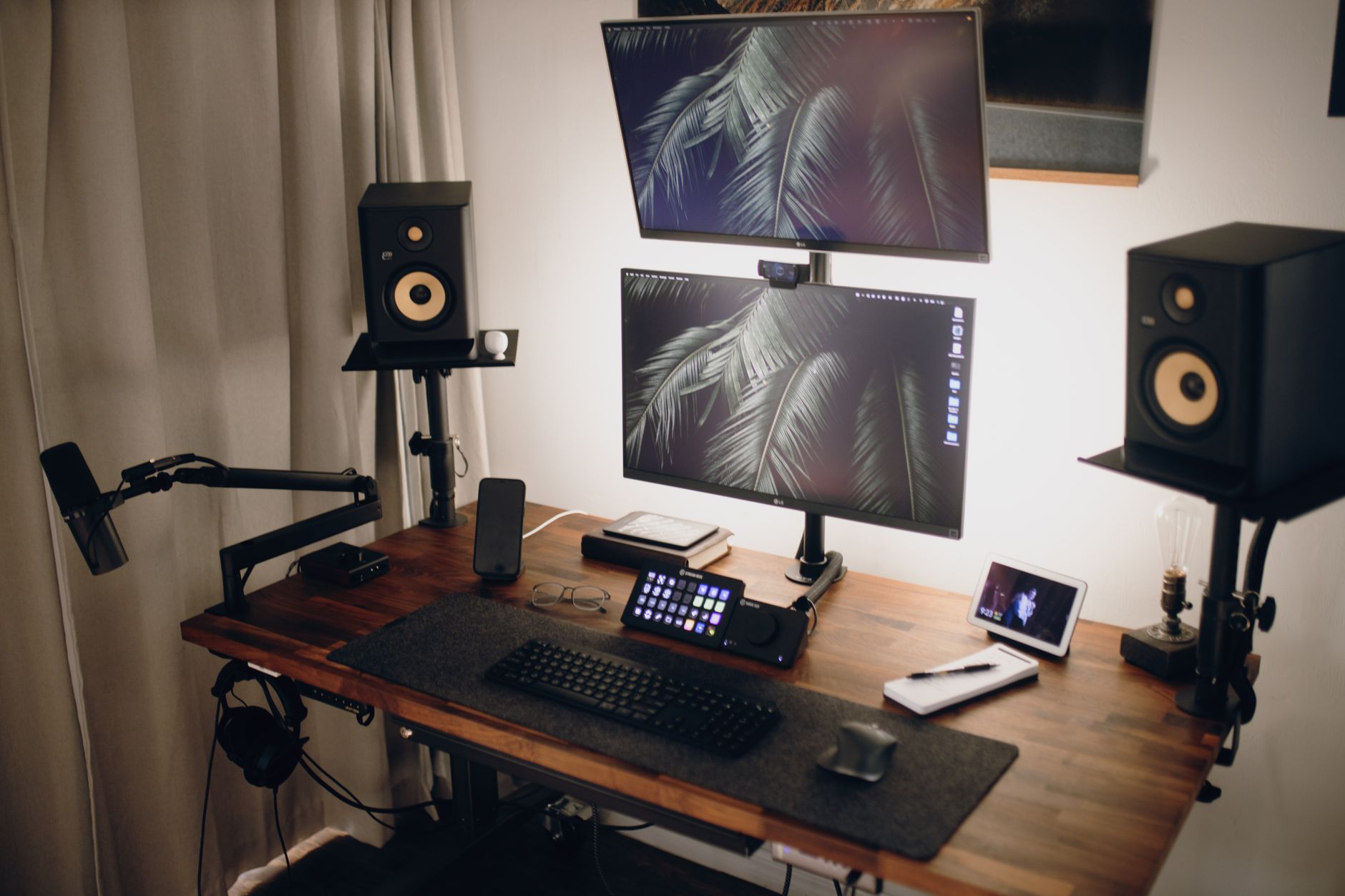
- Set your chair and desk height first
Your monitor height depends on your seated eye height. If you adjust monitors before your chair, you will lock in a bad position. Start with an ergonomic chair that allows a seat height range of about 16 to 21 inches. Sit all the way back. Plant your feet flat. Adjust seat height until your thighs are parallel to the floor and your knees are near 90 degrees. If the seat is too deep or shallow, change the depth so you have two to three fingers of space behind your knees. The best ergonomic chairs guide can help you choose a model with reliable adjustments.
Next check your desk height. For seated work, your desk surface should be at or slightly below elbow height when your shoulders are relaxed. If the desk is too high, you hunch your shoulders. If it is too low, you lean forward. A good seated height range is 22 to 28 inches for many adults, but elbow height is the real guide. If your desk feels too tall, use a footrest to raise your knees slightly and keep your hips open. The best footrests can help shorter users avoid pressure behind the thighs.
Once your chair and desk are set, hold your head in neutral. Look straight ahead with your ears over your shoulders. That line is the baseline for monitor height. Do not raise your chin or look down your nose. Many neck problems start because people mount screens to match a standing eye height and then sit. You will fix this in the next step with the top of screen rule. If you use a sit stand desk, repeat this seated baseline before you stand. The how to set up standing desk correctly guide covers the standing side.
- Mount your monitors with the top of screen at eye level
Mount the primary monitor first. Center the arm on your desk or clamp it at the back edge. Raise or lower the monitor until the top edge is at or slightly below seated eye level. The screen should not be above your straight ahead gaze. Research from Cornell University Ergonomics Web recommends a downward viewing angle of about 15 to 20 degrees from horizontal for comfortable screen work. That means your eyes naturally look slightly down, but you should not have to drop your chin or crane your neck.
Keep both screens at the same height if you use them equally. Align the top bezels and bottom bezels as closely as possible. If one monitor is larger, align the top edges, not the centers. That way you avoid a visible step that makes your eyes jump. Set the arm tension after mounting. A gas spring arm should hold the monitor without slowly sinking. Tighten the tension screw until the screen stays put with a light touch. If you use the Ergotron LX Dual Monitor Arm, adjust each arm separately. Check the Ergotron LX Dual Monitor Arm on Amazon.
The monitor arm should allow the screen to float just above the desk, not crowd your keyboard. Check the vertical range. Some arms have a tall pole. Others have a shorter range. If the screen cannot go low enough, you may need a lower desk or a monitor riser removed. If the screen cannot go high enough for standing, choose a taller pole. The goal is to keep your head balanced over your spine, not tipped back. The best monitor arms guide includes models with vertical ranges and weight limits.

- Place the primary monitor directly in front of you
Your dominant monitor should be centered on your keyboard and chair. Do not place the bezel between two screens in front of your nose. If you write code, edit video, or read documents on the left screen most often, make that the primary. The center of the primary screen should align with the center of your body. This single change removes a large amount of static neck rotation. Your nose and screen center should line up when you sit back in a neutral posture.
Set the viewing distance between 20 and 30 inches from your eyes to the screen. For a 24 inch monitor, 20 to 24 inches is common. For a 27 inch monitor, 24 to 28 inches works better. For a 32 inch or ultrawide, stay closer to 28 to 30 inches. Use an arm’s length test. Sit back, extend your arm, and your fingertips should touch the screen or fall just short. If you lean forward, the screen is too far away. If you can see individual pixels too easily, it may be too close.
Adjust the depth of the arm so the monitor does not dominate your field of view. The screen should sit behind your keyboard, not next to it. On a shallow desk, clamp the arm to the side or use a wall mount. On a deep desk, bring the monitor toward you. This distance rule works with the eye height rule from the previous step. Together they create a neutral, relaxed focal point. If your monitor is still too far, scale text up instead of leaning in.
- Angle the secondary monitor into a shallow arc
Place the secondary monitor to the side of your primary screen. If you use both equally, center the pair as a unit so the total viewing arc is balanced. The total horizontal viewing angle from screen edge to screen edge should stay within about 70 degrees, or 35 degrees left and right of straight ahead. This is based on comfortable eye and neck movement research. If you have to turn your head more than 35 degrees, the monitor is too far to the side. Pull it in or angle it.
Angle the secondary monitor inward. A gentle inward angle of 10 to 20 degrees often keeps the screen surface perpendicular to your line of sight. Too much angle can create a strange trapezoid effect and glare. Too little angle makes you twist your neck. If the secondary screen is mostly for reference, keep it on your non dominant side at a slightly shallower angle. If you work in both equally, make the angle symmetrical around the center of the combined screens, but still keep one primary.
Think of the two monitors as a shallow curve around your seated body. You should not sit inside a horseshoe. The far edge of the secondary should not be farther than a natural eye sweep. Glance test: with your head still, can you read the first few words on the secondary screen with just eye movement? If yes, the angle is good. If you turn your chin or shoulder, bring it closer. This step directly reduces the repetitive neck rotation that leads to stiffness and headaches.

- Set tilt, font scaling, and lighting to reduce eye strain
Tilt each screen back slightly. A 10 to 20 degree backward tilt from vertical works for most people. The top of the screen should be slightly farther from you than the bottom. This matches the natural downward gaze path. Avoid tilting the screen forward, which reflects ceiling lights and makes you tuck your chin. Check for glare from windows. If you see a bright reflection, move the monitor or use an indirect light source. The eye strain guide explains more about screen brightness and ambient light.
Make the text size comparable on both screens. If one monitor is 27 inches at 4K and the other is 24 inches at 1080p, the text will look wildly different. Adjust display scaling in your operating system until text on both monitors feels similar. This prevents your eyes from refocusing every time you glance over. Also match color temperature and brightness. Use a brightness close to the room, not a glowing rectangle in a dark room.
Follow the 20-20-20 rule. Every 20 minutes, look at something 20 feet away for 20 seconds. This is a specific, research-backed break frequency for screen work. It relaxes the focusing muscles inside your eyes and gives your neck a chance to move. You should also stand or stretch for a minute or two every hour. These breaks reinforce the static monitor setup. No monitor position is perfect for eight straight hours.
- Manage cables and test your setup through a full workday
Loose cables can pull against monitor arms and restrict movement. Use cable management sleeves or clips along the arm. Leave enough slack for the full range of motion when you sit and stand. Avoid hanging power bricks from the monitor arm. Use a cable tray under the desk or adhesive clips. If your desk is a standing desk, test the cable slack at both seated and standing heights. The best standing desk converters have limited space, so route cables carefully.
After mounting, work for 20 to 30 minutes. Notice where your eyes, neck, and shoulders feel work. If you catch yourself leaning toward one screen, move the primary. If you feel one side of your neck tighten, adjust the secondary angle. If your shoulders are lifted, lower the arm a little. The setup is not finished until you make at least two small corrections. Mark your preferred settings with a small piece of tape or a photo.
If you switch between sitting and standing, you will need to repeat the height adjustment. A standing desk with memory presets makes this faster. The best standing desks include models with stable frames and weight capacities for monitor arms. When standing, your elbows should stay near your sides and the top of the primary screen still at or below eye level. Raise the monitors when you raise the desk. Do not leave the screens low and hunch over them.
Keep a small checklist near your desk. Check monitor distance, height, angle, and cable tension monthly. Nudge the arms back if they drift. Re-tighten clamps if the desk surface compresses. These small habits keep the setup safe and pain free.
Red Flags & Warnings
- 🚨 Never place the monitor seam directly in front of your nose. That makes you rotate slightly all day and loads one side of your neck.
- 🚨 Do not set the top of the screen above seated eye level. This forces your chin up and compresses the upper cervical spine.
- 🚨 Do not overload a monitor arm. Check weight capacity and VESA pattern. A sagging arm ruins height settings and can damage the desk clamp.
- 🚨 Avoid fixed dual monitor stands on a shallow desk. They often place screens too close and too high. Use adjustable arms instead.
- 🚨 Do not ignore the 20 to 30 inch viewing distance. Sitting too close causes excessive eye convergence. Sitting too far encourages forward head posture.
- 🚨 Do not route cables tightly around the arm. Snagged cables can limit movement and pull monitors out of alignment.
Frequently Asked Questions
What is the best height for dual monitors?
Set the top of the primary screen at or slightly below seated eye level. This lets your eyes gaze downward at a 15 to 20 degree angle without tilting your head. Align the top edges of both screens when possible.
Should I use one large monitor instead of two?
One large monitor can reduce the neck rotation caused by separate screens. If you already own two monitors, proper placement with a shallow arc works well. Choose an ultrawide only if you can keep the screen 24 to 30 inches away and align the top with your eye level.
How far apart should dual monitors be?
Keep the bezels close enough that you can glance from one screen to the other with mostly eye movement. The total horizontal viewing span should stay within about 35 degrees left and right of center. Pull the secondary monitor inward and angle it gently.
Can dual monitors cause neck pain?
Yes. If the primary screen is off center or the secondary screen is too far to the side, you repeatedly rotate or tilt your neck. Over a full workday this creates static muscle loading and stiffness. Correct placement and monitor arms reduce this risk.
Do I need monitor arms or can I use the stands?
Monitor arms are not mandatory, but they give far better control over height, depth, and angle. Fixed stands often place screens too high or too close on a shallow desk. Adjustable arms let you match the monitor position to your seated and standing posture.
How do I set up dual monitors with a laptop?
Use a laptop stand to raise the laptop screen closer to eye level, then treat it as the secondary or primary display. A dual monitor arm with a laptop tray can hold the laptop and an external monitor together. Keep the external monitor centered if it is your main work surface.
What Should You Remember?
- Primary monitor placement: Put it directly in front of you, centered on your keyboard and chair.
- Monitor arms: Use adjustable arms to change height, depth, tilt, and angle independently.
- Screen height: Align the top of the screen at or just below seated eye level.
- Viewing distance: Keep the screen 20 to 30 inches from your eyes, about an arm’s length.
- Secondary angle: Angle the side monitor inward 10 to 20 degrees so both screens form a shallow arc.
- Break frequency: Follow the 20-20-20 rule every 20 minutes to relax your eyes and neck.
This article is for general information only and is not medical advice. Ergonomic guidance varies by body type and underlying conditions. Consult a physician or physical therapist for persistent pain before changing your workstation.