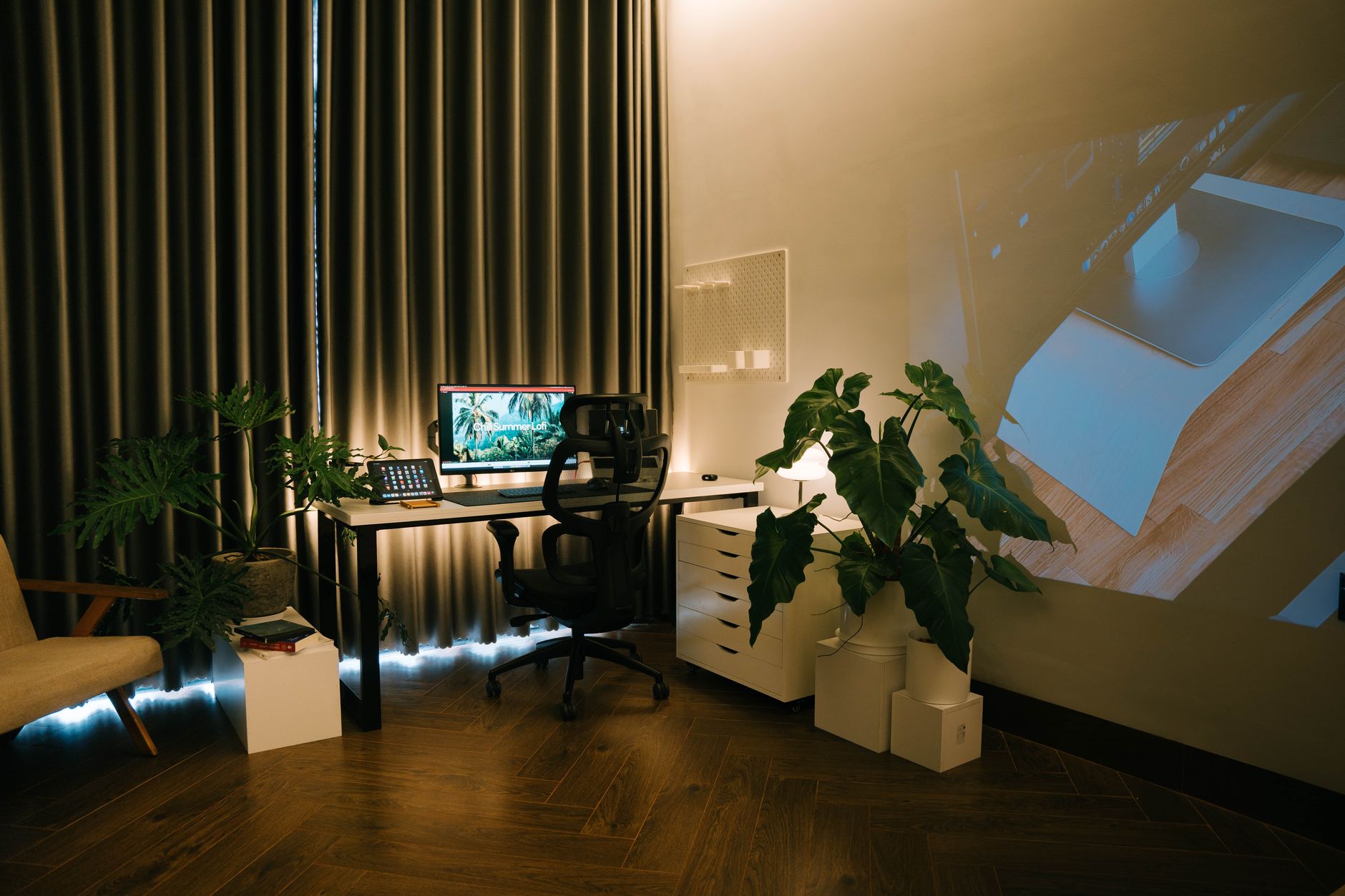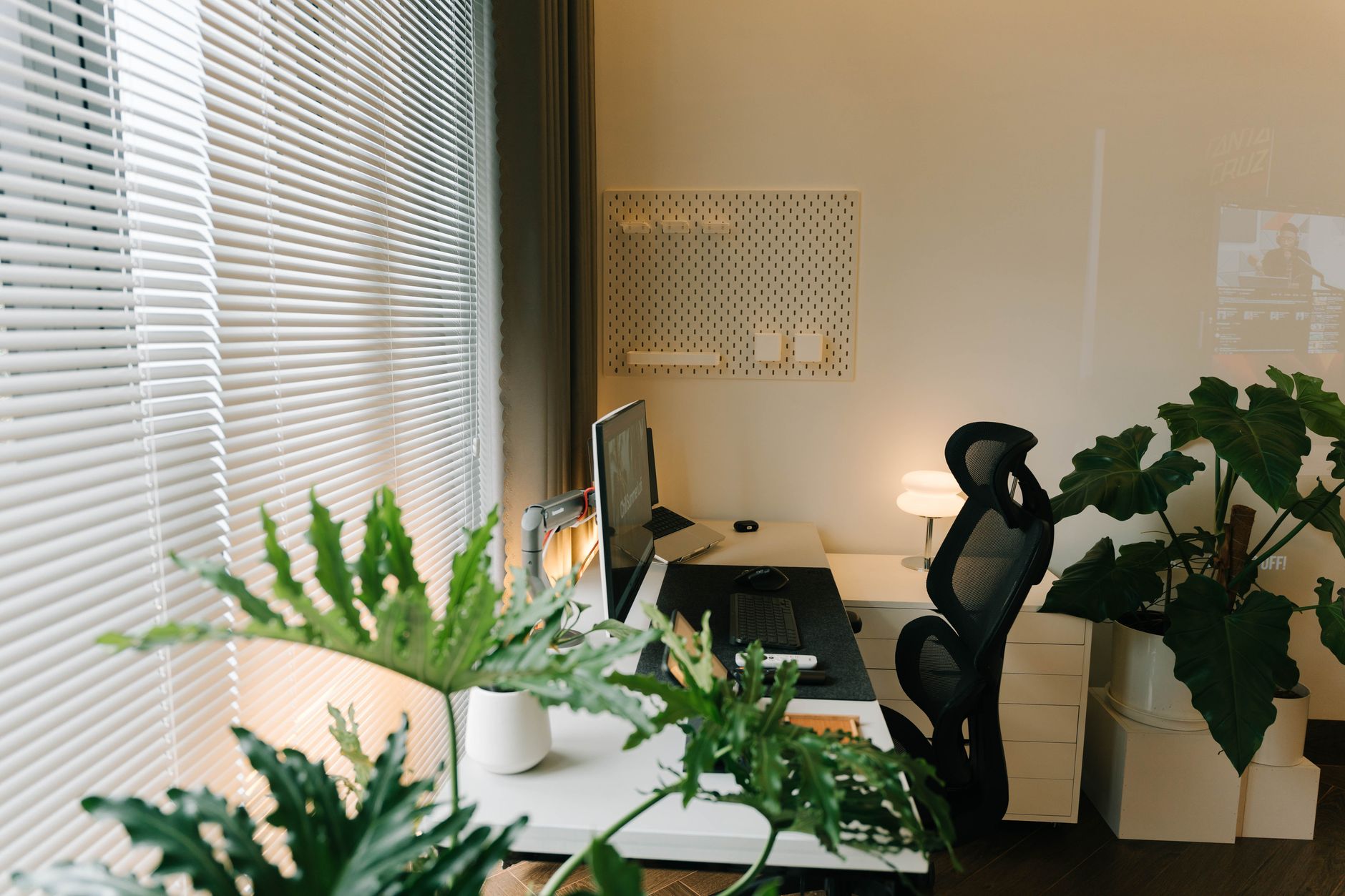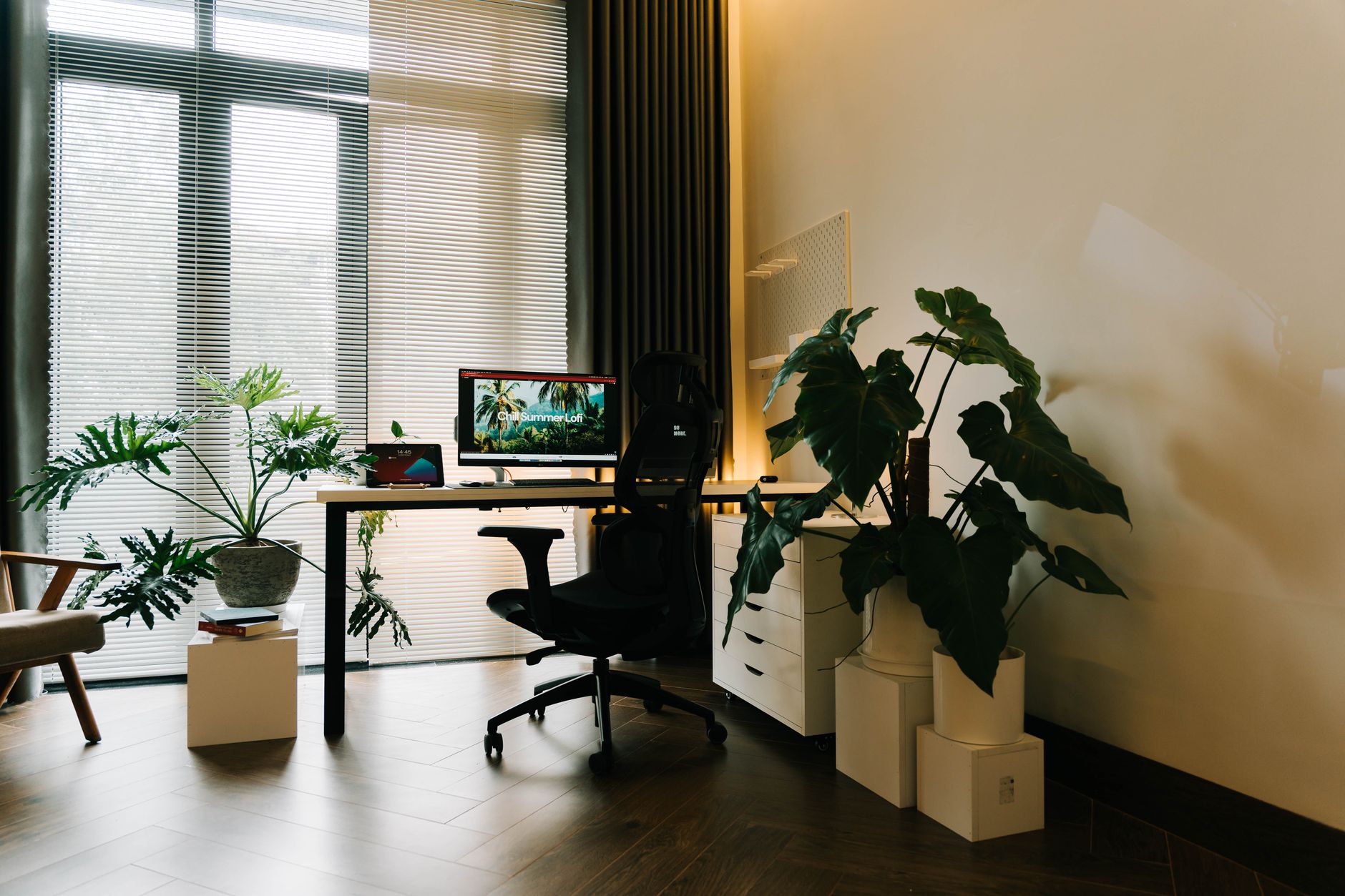
Computer eye strain, also called digital eye strain or computer vision syndrome, is a group of vision-related problems that result from prolonged screen use. Many desk workers describe the same cluster of symptoms: tired, dry, or burning eyes, blurred vision, headaches, and neck or shoulder discomfort. The Mayo Clinic notes that staring at a digital screen reduces your blink rate, which can leave the surface of the eye unprotected and dry. The problem is widespread. The Canadian Centre for Occupational Health and Safety reports that visual discomfort is one of the most common health complaints among computer operators. Understanding why your eyes hurt is the first step toward relief.
Your visual system is not designed to focus on a fixed distance for hours at a time. Screens add extra demands: small text, glare, flicker, and high-energy visible light. Your ciliary muscles, which control the lens of the eye, stay contracted to keep the screen in focus. At the same time, your blink rate drops. A normal blink rate is about 15 to 20 times per minute, but during screen use it often falls to 5 to 7 blinks per minute, according to Mayo Clinic guidance. Fewer blinks mean the tear film evaporates faster, causing dry eye and that gritty feeling many office workers know too well. This combination of muscle fatigue and surface dryness is the core of screen-related eye strain.
The good news is that most computer eye strain is preventable. Small changes to monitor settings, ambient lighting, screen position, and work habits can reduce symptoms quickly. This guide covers the 20-20-20 rule, optimal display settings, glare control, and workspace upgrades. If you are also struggling with neck or back pain while you view your screen, a proper ergonomic setup may be part of the solution. Start with your eyes, then adjust the equipment that supports them.
| Monitor Setting | Recommendation | Why It Helps |
|---|---|---|
| Brightness | Match screen to room lighting | Prevents pupil strain |
| Contrast | 60% to 75% | Keeps text sharp without harsh shimmer |
| Color temperature | Warm or night mode in the evening | Reduces high-energy visible light |
| Text scaling | 125% to 150% on small displays | Prevents leaning and squinting |
| Refresh rate | 60Hz or higher, flicker-free | Avoids visible flicker |
What Is Computer Eye Strain and Why Does It Happen?

Computer eye strain is the medical community’s shorthand for the ocular and visual symptoms that appear after two or more hours of continuous screen work. Symptoms include dry or watery eyes, burning, blurred vision, double vision, difficulty focusing after looking away, and headaches. The CCOHS explains that these symptoms occur because the eye’s focusing system works harder when reading from a screen than from printed paper. Screen contrast, glare, viewing distance, and small pixel-based text all increase the load on the visual system.
Several environmental factors stack up. Low humidity from HVAC systems can dry the eye surface. Air vents blowing toward your face accelerate tear evaporation. Screen glare forces your pupils to adjust repeatedly. High-energy visible light from screens may contribute to discomfort, although research on long-term damage is still mixed. Cornell University Ergonomics Web reinforces that viewing angle and screen height matter just as much as screen quality. A monitor placed too high can expose more of the eye surface, worsening dryness.
The condition is common. The American Optometric Association has estimated that 50% to 90% of computer users report symptoms of digital eye strain. CCOHS similarly reports that visual discomfort is the most frequent complaint among video display terminal users. These numbers matter because they show eye strain is not a rare personal weakness. It is a predictable response to an environment that was not set up for your eyes.
How Does the 20-20-20 Rule Actually Work?

The 20-20-20 rule is a simple timed reminder to rest your eye muscles. Every 20 minutes, look at something about 20 feet away for at least 20 seconds. The distance is what matters. When you focus on a faraway object, the ciliary muscles inside your eye relax and the lens flattens. That break reverses the sustained contraction needed for near work. It is not medical advice, but it is one of the easiest prevention tools recommended by occupational health organizations.
Why 20 feet? At 20 feet or more, the human eye is considered to be at optical infinity. The focusing system does not have to converge or accommodate. A short look down a hallway, out a window, or across a room works. If you work in a small space, the furthest wall may be enough. The key is to actually shift your focus and let your eyes move. Standing up and looking out a window is even better because it also changes your posture and exposes your eyes to natural distance cues.
Many people set a timer and then ignore it. Better methods include using a browser extension, setting a smartwatch reminder, or pairing the break with a small habit. Some office workers use the break to stretch their neck, refill water, or stand. Over the course of an eight-hour day, following the rule adds up to about 20 breaks. That feels frequent at first, but the breaks are short and they interrupt the cycle of near focus that leads to fatigue. If you combine this with a proper ergonomic workstation setup, the relief is usually faster.
Which Monitor Settings Reduce Eye Strain Best?
Your monitor settings can either work against your eyes or support them. Brightness, contrast, color temperature, and text size all influence how hard your visual system works. Start with brightness. Your screen should be close in brightness to your surrounding room. A monitor that glows like a flashlight in a dim office forces your pupils to constrict, while a dim screen in a bright room makes you squint. Set brightness to match a white page on screen to white paper under your desk light.
Contrast increases the distinction between text and background. Higher contrast is usually better for reading, but extreme contrast can cause its own shimmer. A contrast setting between 60% and 75% works for most users. Color temperature is also important. Cooler blue-white light can feel sharper but may increase visual stress in evening hours. Warmer color settings, sometimes called night mode or low blue light, reduce the amount of high-energy visible light. Many users activate warmer tones in the afternoon and evening.
Text size should not require you to lean in. A general rule is that you should be able to read a paragraph at your normal viewing distance with your corrected vision. If you catch your head moving toward the screen, increase the display scaling or browser zoom. For a 24-inch monitor at 1080p, 100% scaling may be too small for many people. Increase to 125% or 150% before buying a larger monitor. An adjustable monitor mount can help you fine tune the position, but display scaling remains a software fix.
Refresh rate and resolution matter less for static office work than they do for gaming, but flicker can still contribute to strain. Choose a modern LED or IPS panel with flicker-free technology if you are sensitive. If you use an older display, a refresh rate below 60Hz may produce visible flicker under fluorescent lights. Finally, avoid placing your screen directly under an overhead light or in front of a window. Settings cannot fix physical glare.
What Is the Best Lighting for a Computer Workstation?
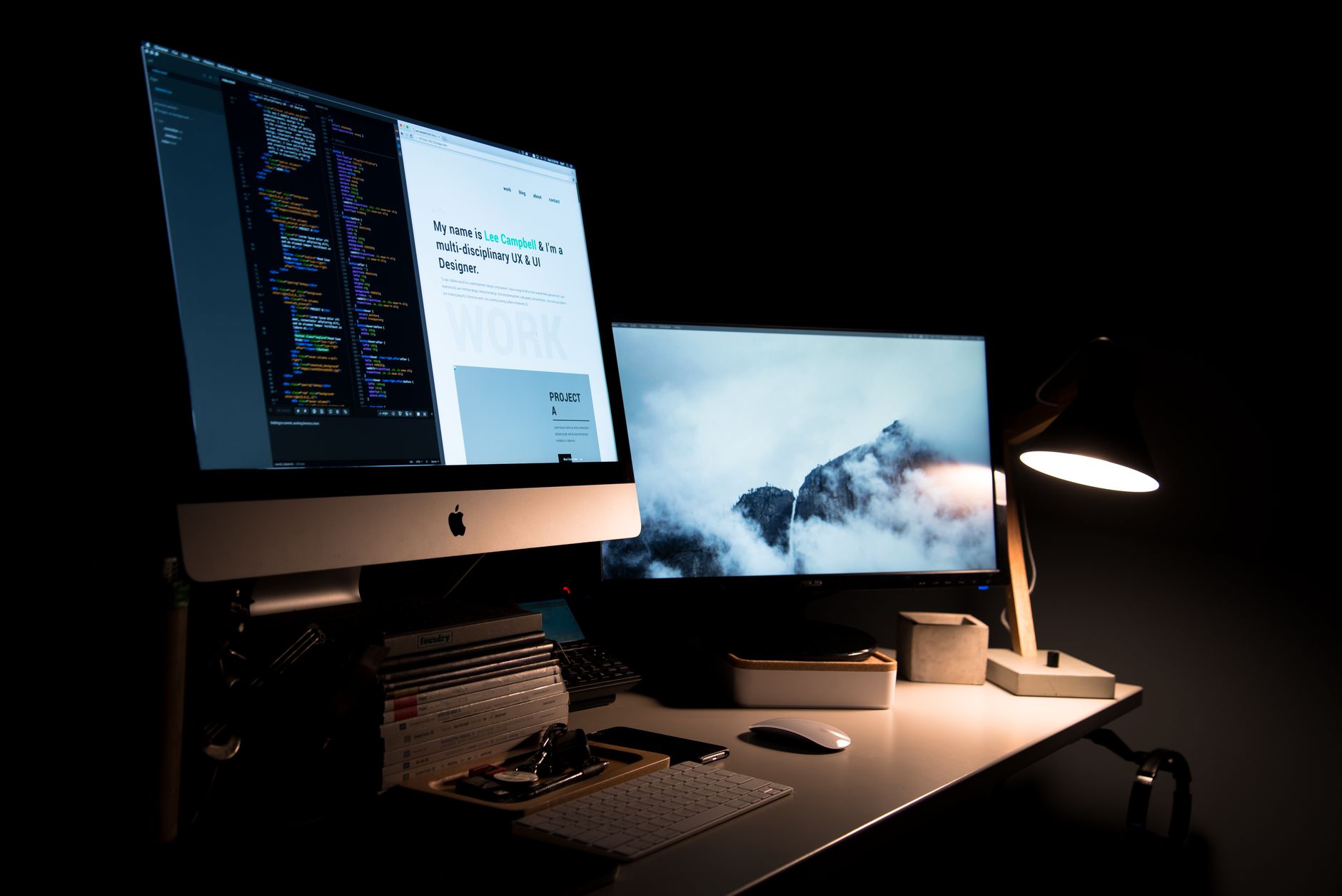
Lighting is one of the most overlooked causes of eye strain. The goal is balanced ambient light with minimal glare. OSHA ergonomics guidance emphasizes that poor lighting forces workers to adopt awkward postures and causes visual fatigue. A single overhead light is rarely enough. You need a layered approach: general ceiling light, a task light if you work with papers, and indirect light that softens the contrast between screen and room.
Avoid placing your monitor directly in front of a bright window. Your eyes will struggle between the bright background and the darker screen. If you have a window behind you, its light can reflect off the screen. The best position is usually perpendicular to the window, so daylight falls on your desk without hitting the screen. Draw blinds or use sheer curtains to diffuse direct sunlight. A matte screen or anti-glare filter can help if you cannot move your desk.
Use a small desk lamp with a warm or neutral white bulb for paper tasks. Aim the lamp at the paper, not at your eyes or the screen. For night work, reduce overhead light and use a bias light behind the monitor. A soft light behind the screen reduces the contrast between the bright monitor and the dark wall. This trick is inexpensive and can make long evening sessions much more comfortable. If your workspace also causes neck or shoulder pain, poor lighting may be part of that problem too. Check the common workstation lighting and posture mistakes for related fixes.
How Should You Position Your Screen and Workspace?
Screen position changes the strain on your eyes, neck, and shoulders. A screen that is too high makes you look up, exposing more of the eye surface to air and increasing dryness. A screen that is too low pulls your head downward and compresses your neck. The classic ergonomic recommendation is to place the top of the screen at or slightly below eye level. Your gaze should fall about 15 to 20 degrees below horizontal when looking at the center of the screen. That slight downward angle keeps the eyelid partly closed, which reduces tear evaporation.
Distance also matters. For most people, the screen should sit about an arm’s length away, roughly 20 to 28 inches from your eyes. If you find yourself leaning forward, move the screen closer or increase the text size. If you wear bifocals or progressive lenses, you may need a lower monitor position so you can use the intermediate zone of your glasses without tilting your head back. A quality monitor arm makes it easy to adjust height, depth, and tilt throughout the day.
Laptop users face a built-in tradeoff. When the screen is at a good height, the keyboard is too high, and when the keyboard is comfortable, the screen is too low. A laptop stand can raise the display to eye level while you use a separate keyboard and mouse. For dual monitor setups, arrange the primary display directly in front of you and the secondary display at the same height and distance when possible. For more details on dual displays, see our dual monitor ergonomic setup guide.
What Else Helps Prevent Eye Strain Beyond Settings?
Habits matter more than gadgets. The most effective acts are often free: blink more, take breaks, and use artificial tears if your eyes feel dry. Purposeful blinking keeps the tear film spread evenly across the cornea. When you notice your eyes feeling gritty, do 20 slow blinks. Over-the-counter lubricating eye drops can supplement your natural tears, but avoid drops that claim to reduce redness if you use them every day. Those drops can mask the problem and cause rebound redness.
Eye exams are also part of the solution. An outdated prescription forces your focusing muscles to work harder. If you wear contact lenses, they may dry out faster during screen work. You might ask your eye doctor about glasses with a mild intermediate prescription or an anti-glare coating for computer distance. Some workers benefit from computer-specific glasses, but the evidence on blue light filtering glasses is mixed. The American Academy of Ophthalmology does not recommend blue light glasses for eye strain because the symptoms are more closely tied to how we use screens than to blue light itself.
Dry indoor air worsens eye strain. A small humidifier can raise humidity in your office, especially in winter or in air-conditioned buildings. Keep HVAC vents from blowing directly on your face. If you wear makeup, avoid applying eyeliner to the inner rim of the eyelid, where it can block tear glands. Finally, consider whether your whole workstation is supporting your eyes. If your chair is too low, your gaze angle changes. If your desk height is off, you crane your neck to see the screen. A complete workstation setup guide can help you address these factors together.
Frequently Asked Questions
What is the 20-20-20 rule?
Every 20 minutes, look at something 20 feet away for at least 20 seconds. It relaxes the eye muscles that focus on near objects and helps reset your blink rate.
Can computer eye strain cause permanent damage?
For most people, no. Eye strain is uncomfortable but temporary. It does not typically cause permanent vision loss, but it can reduce your comfort and productivity if left unmanaged.
Do blue light glasses help with eye strain?
The evidence is mixed. Blue light filters may improve sleep for some people, but they are not proven to reduce computer eye strain. Better relief comes from breaks, blinking, and screen adjustments.
How far should my monitor be from my eyes?
About 20 to 28 inches, or roughly an arm’s length. The top of the screen should be at or slightly below eye level, with the center about 15 to 20 degrees below horizontal.
Is dark mode better for eye strain?
Dark mode can feel more comfortable in low light, but it is not universally better. Light text on a dark background can cause halation for some users. The best choice depends on your vision and ambient lighting.
How often should I take screen breaks?
Use the 20-20-20 rule as a minimum. If you can, add a 5 to 10 minute break away from all screens every hour. Microbreaks are more effective than one long break at the end of the day.
What Should You Remember?
- Follow the 20-20-20 rule to rest your focusing muscles every 20 minutes.
- Match monitor brightness to the room, not to maximum brightness.
- Set the top of the screen at or slightly below eye level.
- Position the monitor about an arm’s length away to reduce visual load.
- Use warm or low blue light mode in the evening and reduce glare.
- Blink more often and use artificial tears when your eyes feel dry.
- Take a full workstation audit if eye strain comes with neck or back pain.
This article is for general information only and is not medical advice. Ergonomic guidance varies by body type and underlying conditions. Consult a physician or physical therapist for persistent pain before changing your workstation.