Most neck and back pain at a desk does not start with a single injury. It builds slowly from small workstation errors repeated for hours every day. A monitor that is four inches too low, a chair with no lumbar contact, or a mouse placed just out of reach can all add strain. This guide explains five ergonomic mistakes that commonly cause neck and back pain, along with concrete fixes you can make this afternoon. The same changes often reduce shoulder tightness and headaches too.
You do not need a complete office overhaul. Start with the workstation basics covered in how to set up an ergonomic workstation. The Mayo Clinic and OSHA both stress neutral postures as the foundation of office ergonomics. In this guide, you will find specific measurements like screen distance and chair height, plus links to equipment that makes the adjustments easier. If you have already made some changes and still hurt, keep reading for a checklist that catches the most common missed details.
The most damaging mistake is not one single position. It is the habit of holding one position too long. Static sitting, even in a good chair, reduces blood flow and lets muscles fatigue. For that reason, this article treats movement breaks as a first-class ergonomic control, not an afterthought. Cornell University Ergonomics Web recommends adjusting your workstation to fit your body, then changing positions often. We will walk through the five mistakes in order from easiest to hardest to fix.
Before you begin, grab a tape measure and a phone timer. You will need to check distances and set movement reminders. The steps below build on each other: first align your eyes, then support your spine, then reduce reaching, then add movement. Each fix includes a measurable target so you can verify it instead of guessing. By the end, you will have a repeatable reset routine for neck and back pain relief.
What You’ll Need
- tape measure
- phone timer
- sturdy books or monitor riser
- optional footrest
How Do You Fix 5 Ergonomic Mistakes Causing Neck and Back Pain?
- Set the monitor so the top of the screen is at or slightly below eye level
A monitor placed too high forces you to look up and extend the neck. The muscles at the back of the neck and the upper trapezius then hold tension to support the head. Place the monitor too low and you flex the cervical spine forward. Both positions can compress discs, stretch ligaments, and create pain that radiates across the shoulders.
The fix starts with your seated eye height. Sit back in your chair, close your eyes, and open them. Your gaze should land near the top third of the screen, about 2 to 3 inches below the top bezel. For most users, this places the top of the screen at or just below eye level. The Cornell University Ergonomics Web recommends a screen distance of 20 to 28 inches from your eyes. That is roughly arm’s length.
If your monitor is too low, stack books under the stand or install a monitor arm for easy height changes. Laptop users often make this mistake because the screen sits in the lap. A laptop stand plus an external keyboard gets the screen to eye level without wrecking your wrists. The goal is neutral neck: ears directly over shoulders, no forward head position.
After you adjust the monitor, glance at your posture. If you catch yourself tilting your chin up to read, lower the screen one inch. If you catch yourself leaning forward, move the screen one inch closer. This step connects to the next one because chair height and monitor height must work together. You cannot fix your neck fully if your lower back is unsupported.

- Adjust your chair so your feet rest flat and lumbar support fits the curve of your lower back
A chair that is too high or too low changes the angle of your hips and spine. When your feet can’t touch the floor, you slide forward and lose lumbar contact. That makes your lower back round and loads the discs. Over time, this can turn into non-specific low back pain that gets worse in the afternoon.
Set the seat height first. Your feet should rest flat on the floor, with your knees at roughly 90 degrees. For many users, the correct chair seat height falls between 15 and 22 inches, depending on your height. Next adjust depth: you want 1 to 2 inches of clearance between the front edge of the seat and the back of your knees. Fit two to three fingers in that space.
Lumbar support should press lightly into the curve of your lower back, not the middle of your spine. If your chair’s support is too high or too low, adjust its height. For chairs with fixed lumbar support, a rolled towel or a low-profile back cushion works. Consider one of the best ergonomic chairs 2026 if your current chair cannot hold these settings.
Do not keep a chair adjusted for a previous user. Recheck the settings every Monday. Your body changes with footwear, fatigue, and desk height, so small daily changes matter. Once your chair supports your pelvis and lumbar spine, the next step is easier: keeping your arms close to your body.
- Keep your keyboard and mouse at elbow height and close to your torso
Reaching forward to type or use a mouse forces the shoulder to roll inward and the upper back to round. The neck then carries the arm’s weight. That extra load shows up as tension between the shoulder blade and the spine, or pain near the base of the neck.
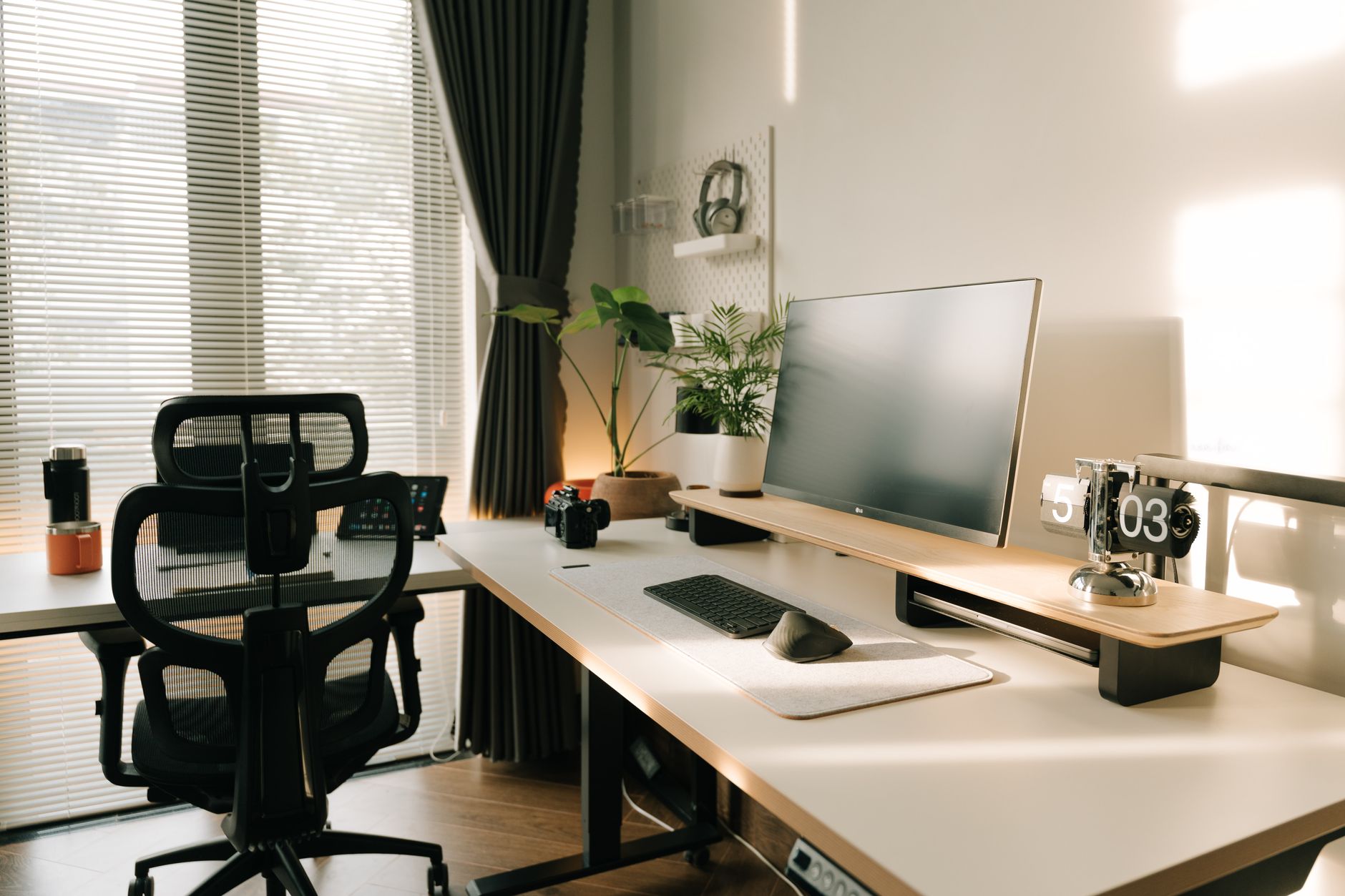
Place the keyboard directly in front of you. Your elbows should be close to your sides at about 90 degrees, with your wrists flat. If the keyboard sits too high, your shoulders shrug. If it sits too low, you lean to one side. The mouse should be as close as the keyboard. Do not let the mouse drift toward the far corner of the desk.
A keyboard tray can lower the input surface below a fixed desk. If you type more than you mouse, consider an ergonomic keyboard with a low front edge. For mouse discomfort, a vertical mouse keeps the forearm in a more neutral handshake position. We like the Logitech MX Vertical for this reason. You can check the logitech mx vertical mouse on Amazon.
After you move the devices, test the setup. Close your eyes, let your arms hang, then open your eyes. Your hands should fall naturally onto the home row and mouse. If you have to lift your shoulders or reach, adjust again. This reduces the static load that turns into neck pain by the end of the day.

- Take a 20-second movement break every 20 to 30 minutes
Even the best chair becomes a risk when you stay in it for hours. Prolonged sitting reduces blood flow, stiffens the spine, and lets your muscles switch off. The pain that starts around 2 p.m. is often less about posture and more about duration. OSHA ergonomics guidance identifies frequent microbreaks as one way to reduce work-related musculoskeletal disorders.
Set a timer for every 20 to 30 minutes. When it goes off, stand up or at least shift your weight from side to side for 20 seconds. Roll your shoulders, tuck your chin, and look at a far point. This brief change resets your postural muscles and gives your spine a different load pattern. It is not a full workout, but it is enough to interrupt static sitting.
For a more complete strategy, pair microbreaks with a sit-stand transition. A standing desk or standing desk converter lets you change your hip angle without leaving your desk. You can also read back pain from sitting guide for a deeper treatment plan. The point is frequency: 20 to 30 minutes is the maximum continuous seated interval for most desk workers.
Do not wait until pain starts to move. Pain is a late signal. Movement breaks work best as prevention, not reaction. The next step explains how to make your desk height work with your body rather than against it. If your desk forces you to sit still because standing feels awkward, the next fix matters even more.
- Set your desk or chair height so forearms are parallel to the floor
A fixed desk that is 29 inches tall works for many tall users but is too high for many shorter ones. If the desk is too high, you raise your shoulders to type. If it is too low, you slump or rest your forearms on the edge, which compresses the wrist. Both errors create neck and upper back pain that no chair alone can fix.
The standard test uses the 90 degree rule. Sit with your feet flat and your knees at 90 degrees. Let your upper arms hang naturally. Your forearms should be parallel to the floor when your hands are on the keyboard. If the desk is too high, raise your chair and add a footrest so your feet still have support.
If you cannot adjust the desk height, a height adjustable standing desk solves the problem. For a smaller budget, a standing desk converter sits on a fixed desk and lets you change heights. The Ergo Desktop Kangaroo Elite is a popular converter. You can check the ergo desktop kangaroo elite on Amazon.
Adjust your desk height in small increments. Change one inch at a time and type for ten minutes before changing again. Your body needs time to sense the new position. This step ties together the chair and keyboard settings from earlier. When desk height, seat height, and arm support all match, the spine can stay more neutral.
- Run a 60-second workstation reset at the start of each workday
The five mistakes do not exist in isolation. A monitor that is perfect today is too low after you recline the chair tomorrow. That is why a short daily reset routine beats any one-time setup. Use the first 60 seconds of your workday to check your body against the workstation.
Start by sitting back in your chair. Check head position: ears over shoulders, eyes level with the top third of the screen. Next check feet: flat on the floor, knees at 90 degrees. Then check arms: elbows at 90 degrees, wrists flat, mouse next to your keyboard. Finally, set a timer for a movement break in 20 to 30 minutes.
For a dual monitor setup, center the primary monitor and place the secondary one at a slight angle within arm’s reach. If you use two screens 90 percent of the time, a dual monitor arm can help keep both screens at eye level. The same reset rules apply to standing work.
Keep this checklist visible for the first two weeks. The goal is not to obsess over every inch. The goal is to make small, repeatable corrections before pain appears. Once the routine becomes automatic, you will fix a bad day’s setup in less than a minute.

Red Flags & Warnings
- 🚨 Pain that starts after 20 minutes of sitting is not normal. If you feel sharp leg pain, numbness, or weakness, stop and see a clinician. Ergonomic fixes help, but they do not replace a medical diagnosis.
- 🚨 Do not let a chair’s lumbar support push you away from the backrest. It should fill the curve of your spine, not shove your pelvis forward.
- 🚨 A standing desk does not automatically fix neck pain. Standing with a monitor still too low or a keyboard too far away just changes the position of the problem. Adjust the workstation before you stand.
- 🚨 Do not set a movement reminder if you ignore it. Use a phone alarm that forces you to stand. The best break is the one you actually take.
- 🚨 Never place a monitor above a fixed laptop screen for dual use if you type on the laptop keyboard. That forces you to choose between neck comfort and wrist comfort.
- 🚨 Watch for headaches at the base of the skull. That is often a monitor height symptom. Lowering the screen one inch can reduce upper neck tension quickly.
Frequently Asked Questions
How high should my monitor be to avoid neck pain?
The top third of the screen should sit at or slightly below eye level when you are seated tall. For many users, that means the top bezel is 2 to 3 inches above the top line of text. The screen should be about 20 to 28 inches from your eyes.
What is the correct seat height for an ergonomic chair?
Your feet should rest flat on the floor with your knees at roughly 90 degrees. Many office chair seats adjust between 15 and 22 inches. If you raise the chair to fit a tall desk, use a footrest so your feet still have support.
How often should I take breaks from sitting at a desk?
Take a 20 second movement break every 20 to 30 minutes. Stand up, shift your weight, or roll your shoulders. This interrupts static sitting and reduces the cumulative load on your spine and neck.
Can a standing desk fix neck and back pain?
A standing desk can help, but only if the monitor and keyboard are still in neutral positions. Many people stand too tall or too low and create new neck strain. Use the 90 degree rules from this article when standing too.
Do I need a keyboard tray if my desk is too high?
A keyboard tray can bring the keys to elbow height without changing the desk. It is especially useful for shorter users with a fixed 29 inch desk. The mouse should move with the tray or sit on a matching platform.
What is the easiest ergonomic mistake to fix first?
Start with monitor height. It often produces the fastest neck pain relief and requires only books or a riser. After that, adjust chair seat height and lower back support, then move the keyboard and mouse closer.
What Should You Remember?
- Monitor height: Position the top of the screen at or slightly below eye level, with the display 20 to 28 inches from your eyes.
- Chair support: Adjust seat height so feet rest flat and knees bend at 90 degrees, then fit the lumbar support to your lower back curve.
- Neutral arms: Keep elbows near 90 degrees and the keyboard and mouse close to your body to avoid shoulder and neck strain.
- Movement breaks: Stand or shift position for 20 seconds every 20 to 30 minutes to interrupt static sitting.
- Desk height: Set the work surface or chair so forearms are parallel to the floor and shoulders stay relaxed.
- Daily reset: Spend 60 seconds each morning checking head, feet, and arm positions before you start working.
This article is for general information only and is not medical advice. Ergonomic guidance varies by body type and underlying conditions. Consult a physician or physical therapist for persistent pain before changing your workstation.