
Quick Answer
The ergonomic workstation setup checklist: (1) Chair height — feet flat, knees at 90°. (2) Monitor — top of screen at eye level, arm's length away. (3) Keyboard — elbows at 90°, wrists neutral. (4) Mouse — same level as keyboard, close to body. (5) Lighting — no screen glare, task light for documents. Most people fix 80% of their ergonomic problems by correcting chair height and monitor position alone. According to OSHA computer workstation guidelines, improper workstation setup is the primary cause of work-related musculoskeletal disorders among office workers.
Ergonomic workstation setup is one of the most impactful and most neglected health investments a desk worker can make. The average office worker sits for 6–8 hours daily, and even small positioning errors — a monitor 5 cm too low, a chair 2 cm too high — compound into significant musculoskeletal strain over months and years.
This guide walks through every element of a proper ergonomic setup, in order of priority. You don't need expensive equipment — correct positioning of what you already have will fix most problems.
Step 1: Set Your Chair Height (Most Critical)
Everything in an ergonomic workstation derives from your seated position. Get this right first:
- Sit in your chair and adjust height until your feet rest flat on the floor
- Your knees should be at approximately 90° (hips can be very slightly above knee level)
- If your feet don't reach the floor at the right chair height, get a footrest — don't raise your chair to match your desk
- Adjust lumbar support to fill the natural inward curve of your lower back — it should feel supported, not pushed
- Armrests should allow shoulders to relax (not shrug) with elbows at approximately 90°
The Mayo Clinic office ergonomics guidelines identify chair height as the single most important variable in preventing lower back pain during prolonged sitting. A properly adjusted chair with lumbar support reduces disc pressure significantly compared to unsupported sitting.
If your chair doesn't adjust adequately or lacks proper lumbar support, see our best ergonomic chairs under $500 guide before continuing the setup.
Step 2: Position Your Monitor
Once your chair is set, the monitor height and distance follow from your seated eye level:
- Sit in your correctly-adjusted chair and look straight ahead with relaxed neck posture — this is your natural eye level
- The top edge of your monitor should be at or just below this level (not the centre, the top edge)
- Distance should be arm's length — approximately 50–70 cm from your eyes
- Tilt the screen back 10–20° to reduce glare and maintain comfortable viewing angle
- For bifocal users: monitor may need to be lower to avoid neck extension when reading through lower lens portion
If your fixed monitor stand doesn't reach the correct height, a monitor arm or even a stable monitor riser ($20–30) will solve the problem. A monitor arm allows the most precise positioning — see our best monitor arms guide for options at every budget.
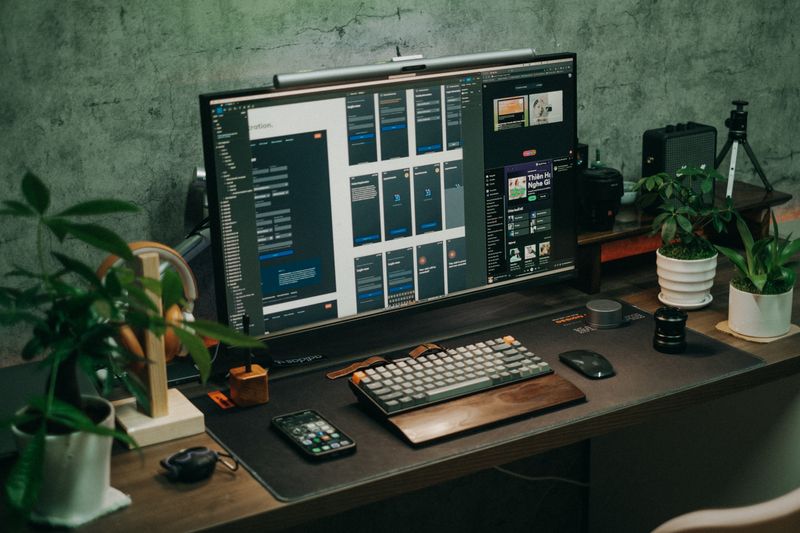
Step 3: Set Keyboard and Mouse Position
With chair height and monitor set, keyboard and mouse position follows:
- Keyboard should be at a height where elbows are at 90° and forearms are parallel to the floor — this is usually desk height for most people
- Wrists should be neutral (not bent up or down) while typing — tilting the front keyboard legs down (negative tilt) often helps
- Mouse should be at the same height as the keyboard, as close to your body as possible
- Don't rest your wrists on the wrist rest while actively typing — use it only during pauses
- Keep both input devices within a comfortable reach — don't stretch to the mouse
If your keyboard is too high relative to your correct seated position, a keyboard tray that mounts under the desk can lower it appropriately. For keyboard and mouse recommendations, see our ergonomic keyboard guide and ergonomic mouse guide.
Step 4: Check Lighting
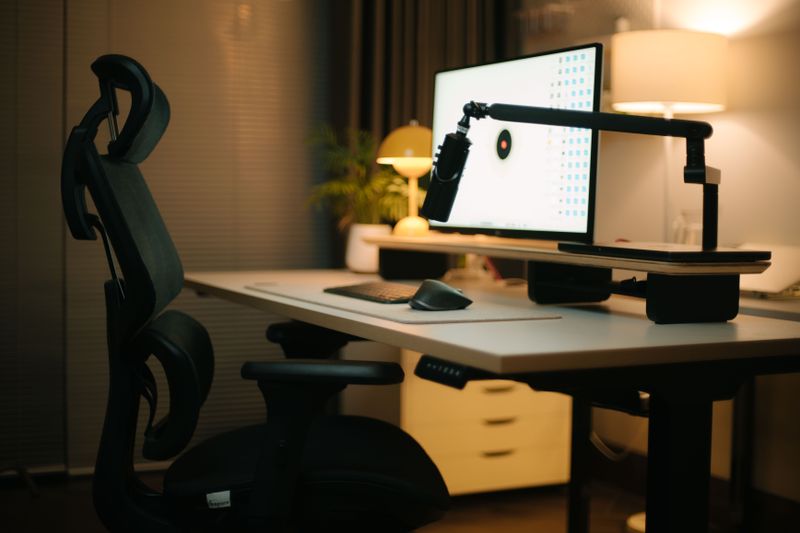
Poor lighting causes eye strain, headaches, and encourages posture changes (leaning in to see better). Two lighting rules:
- Eliminate glare: No light source should reflect directly off your screen. Position your monitor perpendicular to windows, not facing them or with a window behind you.
- Match brightness: Your screen brightness should roughly match the ambient light level in your room. Working in a dark room with a bright screen causes significantly more eye fatigue than working in a well-lit environment.
A simple desk lamp angled at documents (not the screen) reduces eye switching strain between bright documents and dark surroundings.
Step 5: Take Micro-Breaks
Even a perfect ergonomic setup doesn't eliminate the need for movement breaks. NIOSH guidelines recommend:
- Brief (2–3 minute) micro-breaks every 30–60 minutes for stretching or standing
- The 20-20-20 rule: every 20 minutes, look 20 feet away for 20 seconds (reduces eye strain)
- Alternating between sitting and standing every 30–60 minutes for standing desk users
- Full lunch break away from the computer — not eating at your desk
Quick Ergonomics Checklist
| Element | Correct Position | Common Mistake |
|---|---|---|
| Chair height | Feet flat, knees 90° | Too high or too low |
| Lumbar support | Fills lower back curve | Absent or positioned at wrong height |
| Monitor height | Top of screen at eye level | Too low (most common error) |
| Monitor distance | 50–70 cm from eyes | Too far (encourages leaning) |
| Keyboard height | Elbows at 90° | Too high (raises shoulders) |
| Mouse position | Same level as keyboard, close | Too far from body |
| Wrists while typing | Neutral (straight) | Elevated or extended |
Frequently Asked Questions
What is the correct ergonomic sitting position at a desk?
The correct ergonomic sitting position: feet flat on the floor (or footrest), knees at approximately 90°, hips at or slightly above knee level, lower back supported by lumbar support, shoulders relaxed (not hunched or raised), elbows at 90° with forearms parallel to the floor, and wrists neutral (not bent up or down). The top of your monitor should be at or just below eye level.
How high should a desk be for ergonomic typing?
Desk height should allow your elbows to rest at approximately 90° with forearms parallel to the floor when typing. For most people, this is 68–76 cm desk height when seated. Keyboard trays can lower the effective typing surface for shorter users. For standing desk users, the same elbow angle applies — roughly hip height or slightly above.
How far away should your monitor be?
Monitor distance should be approximately arm's length away — typically 50–70 cm from your eyes. At this distance, you should be able to read text clearly without leaning forward. If you're leaning in to read, either increase your font size or move the monitor closer. The top of the screen should be at or just below eye level when sitting with good posture.
How often should you take breaks when working at a desk?
OSHA recommends brief micro-breaks every 30–60 minutes of continuous computer work. The 20-20-20 rule for eye strain: every 20 minutes, look at something 20 feet away for 20 seconds. For musculoskeletal health, stand, stretch, or walk for 2–5 minutes every hour. Standing desk users should alternate every 30–60 minutes between sitting and standing rather than standing all day.
Recommended Products
Get weekly guides from ErgonomicOffice
No spam. Unsubscribe anytime.